Getting Started
Registration

Getting started using My SHOPPER management system, register your email on My SHOPPER website
HOW : HTTP://SP.MY-SHOPPER.COM
- Shop registration on My SHOPPER
- Member confirmation emails will be sent to your registered email address
Online shopping procedure
- Contacting shopkeeper if customers have any question (such as: Shipping fee, discount...)
- A buying request will be sent to your management system when an online order made by a customer
- Sending an invoice with total amount to customer.
- Once the order is paid by the customer, you will immediately get notified through the management system and e-mail.
- Delivery paid order.
- User confirmation (confirm order received). Once a confirmation is made by a customer, payment (with PayPal transaction fee) will be automatically transferred to your registered PAYPAL account.
Shop verification
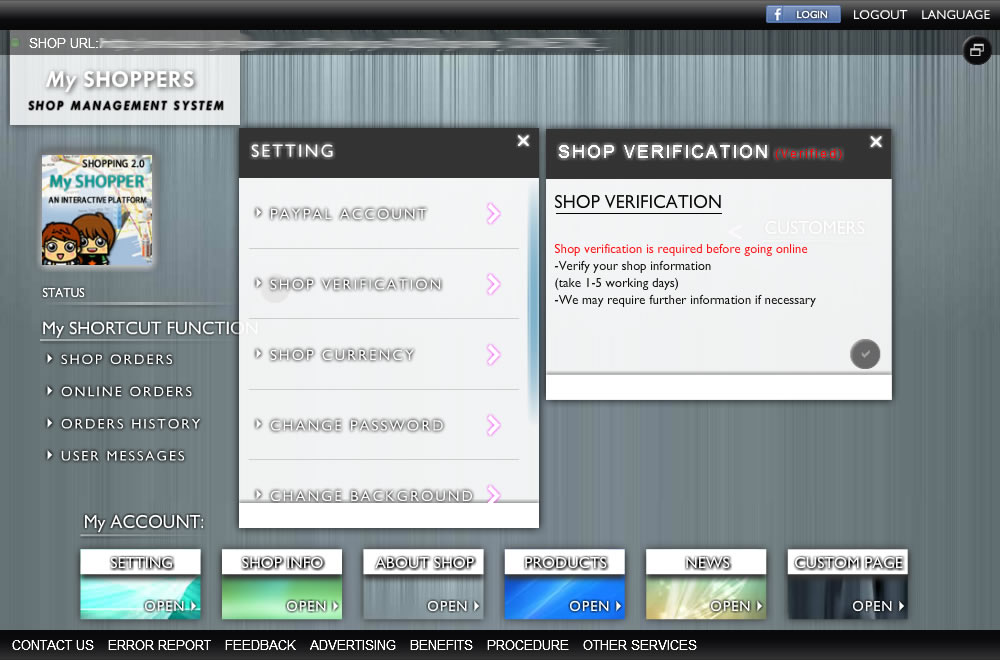
verifying your shop via management system. a verification is required before going online (for online shop), it normally take 1-5 working day to get this process done, and we may require further information if necessary.
HOW : SYSTEM -> SETTING -> SHOP VERIFICATION
- By clicking "tick" button to get your shop account verified
- Once you have verified your shop account, a word "VERIFIED" will be shown on the top of header
PayPal account
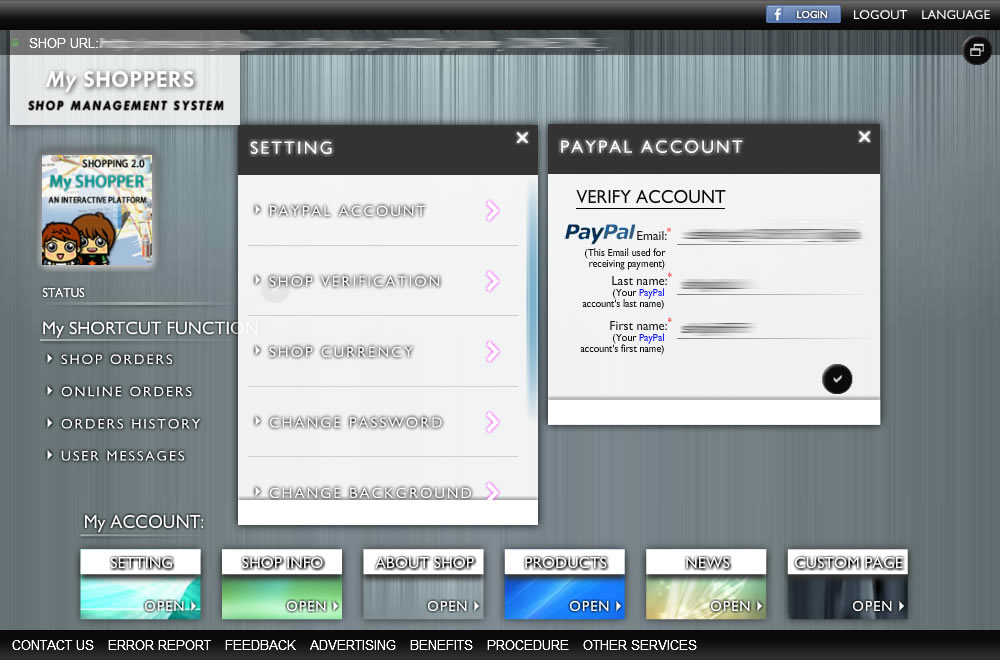
verifying your PayPal via management system. After verification, online payment will be automatically transferred to your registered PAYPAL account.
HOW : SYSTEM -> SETTING -> PAYPAL ACCOUNT
- Simply, place your PayPal account's Email, Last name and your First name.
- Once you have verified your PayPal account, a word "VERIFIED" will be shown on the top of header
PayPal transaction fee
Online payment transaction fee:
5% + a PAYPAL transaction fee
Hong Kong : $2.35 HKD
Japan : ¥40 JPY
Taiwan : $10 TWD
USA : $0.30 USD
Singapore : $0.50 SGD
Thailand : ฿11.00 THB
Philippines : P15.00 PHP
More info :
https://www.paypal.com/us/cgi-bin/?cmd=_display-xborder-fees-outside&countries=
For example:
A $100 USD transaction in USA
100US$ X 5% + $0.30 USD = Total transaction fee : $5.3 USD
Shop currency
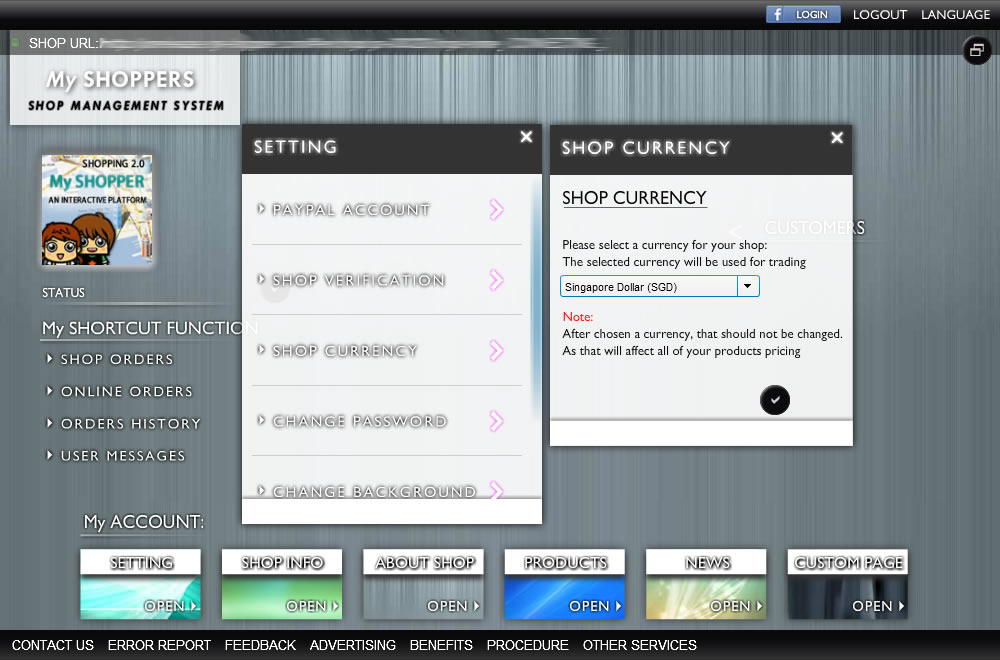
Selecting a currency for your shop. Once you have chosen a currency, it should NOT be changed, as it affects all of your products/service pricing.
HOW : SYSTEM -> SETTING -> SHOP CURRENCY
- Selecting a currency that suit for your shop.
- Save it by clicking "tick" button
Tax
Enter a tax rate for your shop. Entered tax rate will be used as a default product tax rate. When creating a product, you can independently set different tax rates to different product.
HOW : SYSTEM -> SETTING -> SHOP CURRENCY
- Enter a tax rate.
- Save it by clicking "tick" button
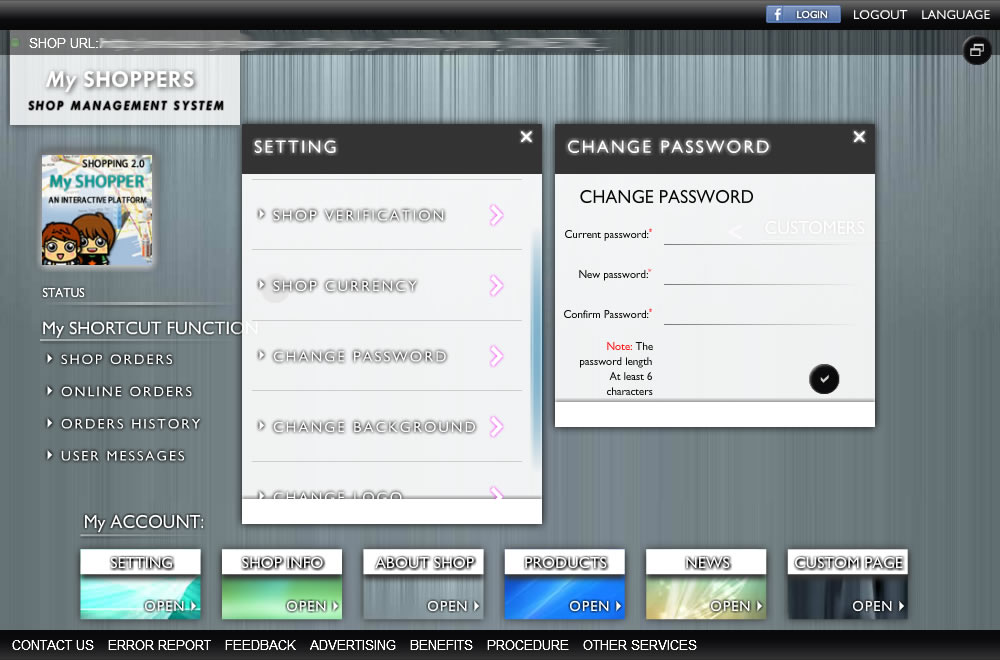
Changing password
To protect your account, we suggest changing your account's password every 3 month
HOW : SYSTEM -> SETTING -> CHANGE PASSWORD
- Changing your account's password, enter your current password, and a new password with at least 6 characters
- Save it by clicking "tick" button
Changing background/logo
(For online shop) Changing your online shop's background and logo, that will be shown in your online shop
HOW : SYSTEM -> SETTING -> CHANGE BACKGROUND/LOGO
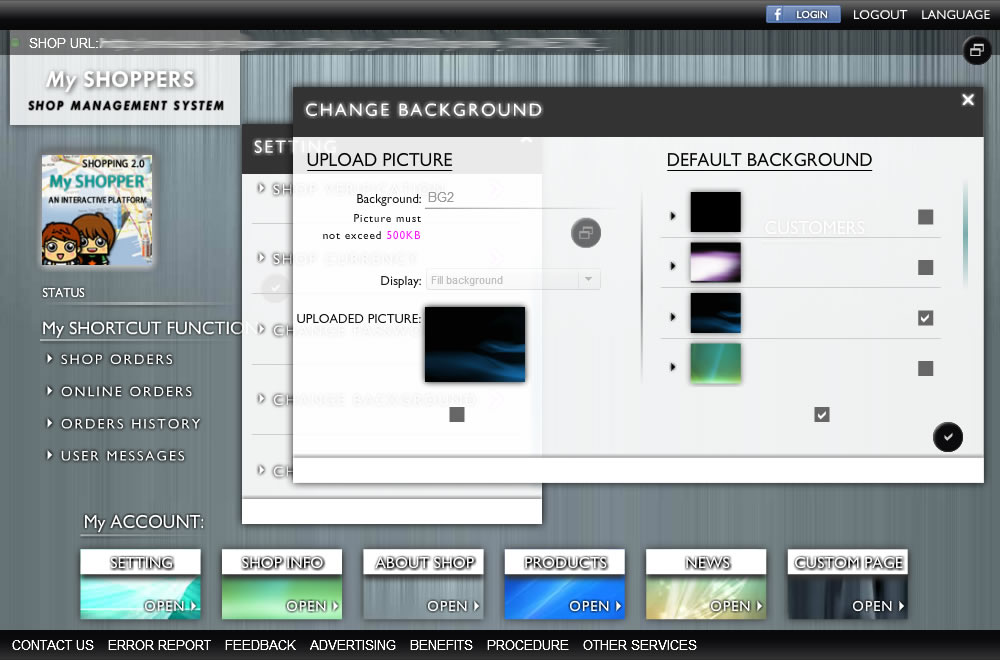
- Changing background/logo, you can either choose from default background, or upload one by yourself
- Save it by clicking "tick" button