Orders management
Shop order (POS)

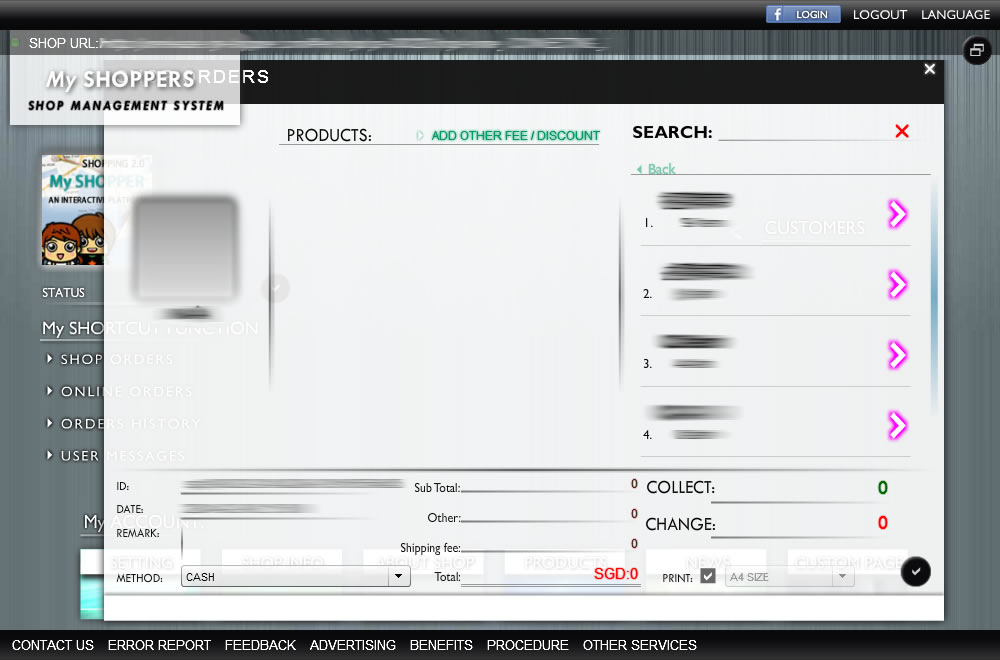
Following are the steps for creating a shop order:
HOW : SYSTEM -> My SHORTCUT FUNCTION -> SHOP ORDERS
- Adding a product/service to checkout list :
You can do this by selecting a product from product list, or using search function to find a product - Product quantity :
Once you have added a product into the checkout list, you can either adding quantity to a product by clicking on the "NEW" button from the product list, or directly enter a number of quantity in checkout list for a product. - Adding other fee/discount to a order :
if you have other fee/discount that need to be added in a order, you can do this by clicking "ADD OTHER FEE/DISCOUNT" button, a new window will be shown. Simply, enter a name, and total amount, then click "tick" button to save it. - Adding shipping fee :
Simply, enter a total amount in shipping fee text feild.(if any) - Adding Remark :
Anything that you would like to remark in any order - Changing pay method :
Simply, select a pay method from the dropdown. (by default, CASH is selected) - Lastly, confirming how much money has collected from your customer (by default the total amount of this order)
- TIP :A faster way of creating an order :
1. Searching a product from search field.
2. Once you have found a product, press "ENTER" (a product will be added into checkout list autometically)
3. To add more products, do the step 1, and step 2 again, else press "ENTER" again to jump to shipping fee field.
4. Press "ENTER" again to jump to COLLECT field.
5. Press "ENTER" again to jump to pay METHOD field.
6. Press "ENTER" again to jump to "TICK" button.
7. Press "ENTER" again to create this order.
Online order (Online shop)
A list of pending online orders that made from you customer via your online shop.
HOW : SYSTEM -> My SHORTCUT FUNCTION -> ONLINE ORDERS
Online shopping procedure:
- 1. Open up an order from online order overview.
- 2. Adding shipping fee, tax, discount, and remark(if any) by clicking "TICK" button. An invoice with total amount will be sent to your customers automatically
- 3. Preparing delivery once an order is paid by customers, you will immediately get notified through the management system and e-mail.
- 4. Once a confirmation (received paid product) made by a customer, payment will be automatically transferred to your registered PAYPAL account.
Order history & Cancelling an order
Finding all of your previous online orders and shop orders
HOW : SYSTEM -> My SHORTCUT FUNCTION -> ORDERS HISTORY
- 1. Choose what kind of order (online, or shop) you are searching for.
- 2. Selecting date, or shortcut (today, a week, or a month) for searching record
- 3. Viewing order detail by clicking each searched record.
- 4. Cancelling an order by clicking each "REMOVE" button.
NOTE: Cancelled order cannot be restored as an active order